- Home
- News
- Using Show & Tell to support implant consent and treatment planning
Using Show & Tell to support implant consent and treatment planning
09 November 2026
(Last updated: 9 Nov 2026 09:44)
Irene Reguilon of Kiroku explains how short animations can support your patient conversations:
Implant treatment asks a lot of patients to take in. There are options to weigh up, a surgical stage to understand and long-term maintenance to commit to. Explaining all of that out loud, or with a mirror and a quick Google image search, doesn’t always help it land. And the note often records only that “risks and benefits were discussed”.
Show & Tell is a new Kiroku feature designed to help with this. It gives you a library of short, simple animations that you can play to patients during the appointment, record in the note and share afterwards.
What is Show & Tell?
Show & Tell sits inside the Kiroku notes editor, so you can open it without leaving the appointment. There are over 50 videos, grouped into collections and including videos on implants, bridges and peri-implantitis.
Search works with everyday words and synonyms, so you can find the right video even if you call it something different from your colleagues. Your favourites appear first, followed by your recently played videos.
The Show & Tell page is laid out so that you can quickly switch between relevant videos for different stages of the patient journey. That means that on the same page, you can click to show suggested videos from diagnosis to treatment, consequence and additional information.
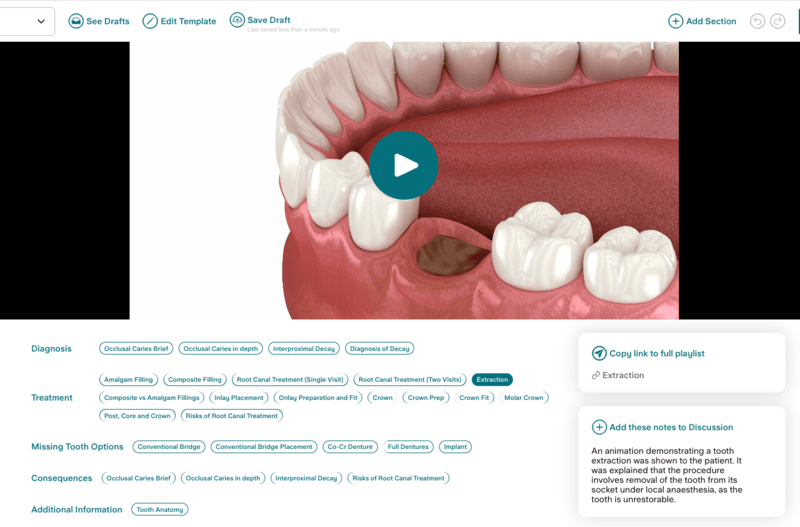
It also works alongside Freestyle and Co-Pilot, Kiroku’s AI voice note features, and remembers your preferred playback speed. You can play the videos with sound if you want us to provide the simple explanations, or without - so that you can just use the visuals to explain things the way you want to.
Using Show & Tell in implant consultations
Treatment planning
A patient with a missing tooth often arrives having heard of implants and bridges, but without a clear picture of what either involves. Playing the relevant videos from the Missing Tooth Options collection gives you a shared starting point, so your time goes on what applies to their mouth, such as the bone and the site.
Consent
Before surgery, a short animation of the implant procedure can set out the stages in a way patients can follow at their own pace. You can then focus the discussion on the risks, alternatives and questions specific to them.
Maintenance
At a review appointment, the peri-implantitis video gives you an easy way into the conversation about why maintenance visits and home care matter.
Recording what the patient was shown
After you play a video, Kiroku can add its explainer text to the Discussion section of your note. Your note then records what the patient was shown.
The videos are general explainers. They support your discussion and don’t replace the patient-specific conversation about risks, alternatives and questions that valid consent depends on, so you’ll still want to note anything particular to the patient in your own words.
Sharing videos after the appointment
Some patients will want to watch a video again or share it with family, which you can do with Show & Tell.
In Kiroku Docs, you can insert hyperlinks to videos into a patient letter; the videos you played in that appointment are suggested for you. However, you can add other videos as well.
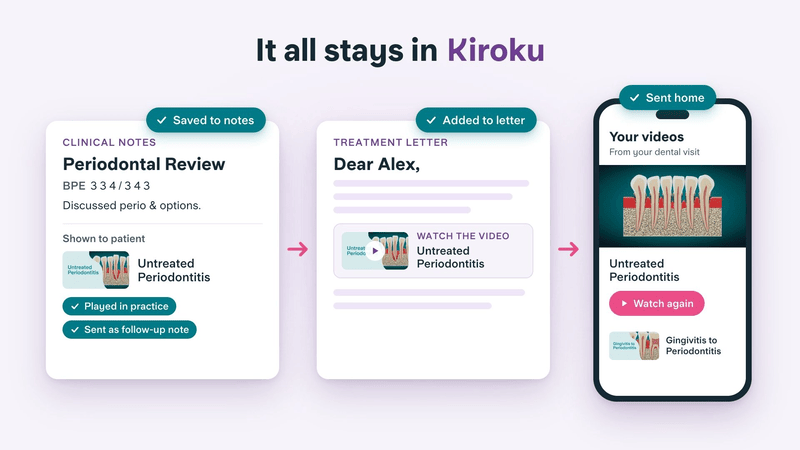
If you don’t want to send a letter, but still want to send videos to the patient, you can also create a custom video playlist to send to the patient by whatever means you want.
Getting started
- Choose one conversation you have often, such as peri-implantitis maintenance, and use the video next time it comes up.
- Favourite the videos you use most.
- Add the video to the follow-up letter, so the patient can watch it again at home.
Try Show & Tell
ADI members who are new to Kiroku get a 14-day free trial and up to 30% off their first 12 months of a Kiroku subscription when they sign up using the ADI partner sign-up code found in the Member’s area.
If you already use Kiroku, you can find Show & Tell in the right-hand sidebar of your notes editor. To find out more about how this works, you can see a step-by-step guide and videos in Kiroku’s help centre.
View other News